
Pixel Studio PRO: editor
Hippo Games AMArt & Design
4.7115.00 Reviews
- Version
- 5.48
- Installs
- 10.00K
- Age Rating
- Everyone
Screenshots
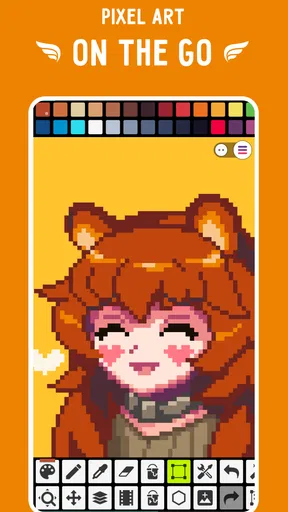
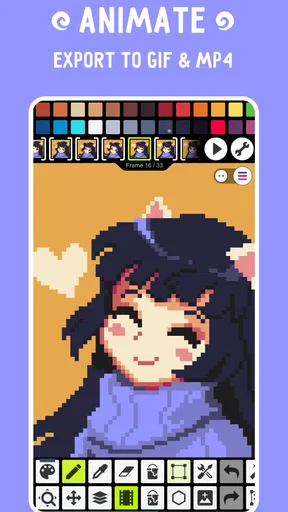
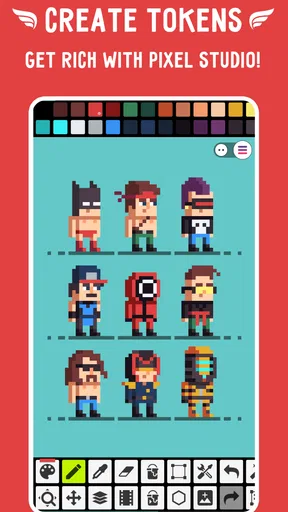
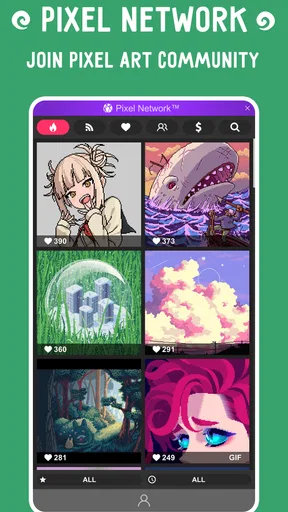
Our Review of Pixel Studio PRO: editor
 Analysis by Appyee
My first useful test with Pixel Studio PRO: editor would be small and deliberately simple: make a tiny sprite, choose a few colors, and see whether the controls let me shape clean pixels without fighting the screen. That is the kind of task a mobile pixel-art editor should make approachable. I like the idea of being able to sketch during a spare moment rather than needing a desktop setup, but pixel work also rewards precision, so the real question is whether a phone or tablet feels comfortable for the way you draw.
What to expect from a mobile pixel-art editor
This is an art and design app from Hippo Games AM, aimed at creating pixel-based images on a mobile device. It has a 4.7 average from around two thousand ratings, and it has passed ten thousand installs. Those figures suggest that it has found an audience, but they do not tell you whether its workflow will suit your hands or your projects. I would treat it as a focused drawing space, not as a replacement for every kind of illustration software.
The app is rated Everyone, and version 5.48 is listed for devices running Android 7.0 or later. It costs $5.99, with in-app purchases ranging from $0.99 to $17.99 per item. That makes it worth checking the purchase details on your device before committing, especially if you assumed the price covered every optional item. Pixel Studio PRO is best considered by people who specifically want to make pixel art, rather than anyone seeking a general-purpose painting app.
Getting Started with Pixel Studio PRO
The first thing you’ll notice when you fire up Pixel Studio PRO is its sleek and intuitive interface. Seriously, it’s like the developers peeked into every artist's mind and pulled out exactly what we need. It doesn’t matter if you’re using an Android or iOS device; the app runs smoothly on both platforms. Setting it up was as easy as pie. Just download, install, and you’re ready to start creating.
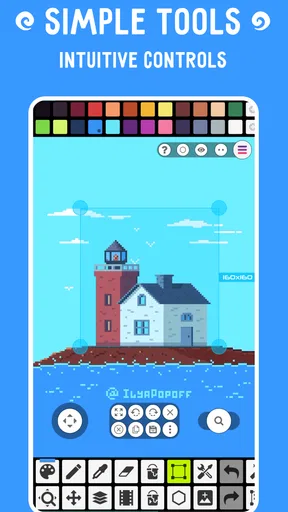
Once you open the app, you're greeted with a clean canvas and a set of tools that are super easy to navigate. The app offers a quick tutorial for beginners, which I found quite handy. It walks you through the basics, and soon enough, you’re doodling like a pro. The interface is so user-friendly that even if you’re new to pixel art, you won't feel lost or overwhelmed.
Make the first session small and deliberate
For a first session, I would avoid starting with a detailed character or a big scene. Try a compact object with a recognizable silhouette, such as a leaf, a cup, or a simple star. Work with a small set of colors and check the outline before adding tiny details. Pixel art can look clear at a glance but become lumpy when enlarged, so zooming in and then stepping back to inspect the whole image is a useful habit. That quick loop teaches you more than trying every tool at once.
If you are drawing with a finger, keep your gestures measured and use the zoom controls to place individual pixels rather than dragging quickly across the canvas. A stylus can make careful placement easier, but it is not a prerequisite for experimenting. I would also save a simple draft before making major changes. That gives you room to try a different palette or alter a shape without feeling that one wrong move has spoiled the only version of your idea.
Features That Spark Creativity
Let’s talk features because that’s where Pixel Studio PRO really shines. The app is loaded with tools that cater to both beginners and advanced users. From customizable palettes to advanced layering options, it’s all here. You can create animations, which is a total game-changer. The onion skinning feature allows you to see multiple frames at once, making it easier to craft smooth animations.
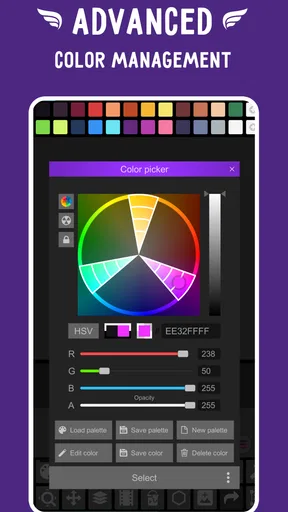
And the color picker? Absolute perfection. It’s detailed and precise, letting you select just the right shade with ease. Plus, the app supports a massive range of colors, so you're not limited to just the standard palette. This is crucial for those of us who like to experiment with different tones and shades in our artwork.
Another cool feature is the symmetry drawing tool. It’s perfect for creating intricate patterns and designs without breaking a sweat. And if you’re someone who likes to share your artwork across platforms, the app offers seamless integration with cloud storage, making it easy to save and access your work from anywhere.
Where the workflow needs a little care
There is a practical trade-off in working on a small touchscreen: the same compactness that makes the app portable can make precise editing fiddly. Tiny selections, close-together controls, and repeated zooming may slow you down on a phone, particularly when you are adjusting a detailed sprite. I would use a larger screen when the drawing has many small parts, and reserve quick phone sessions for sketches, palette tests, and edits that do not require prolonged pixel-level work.
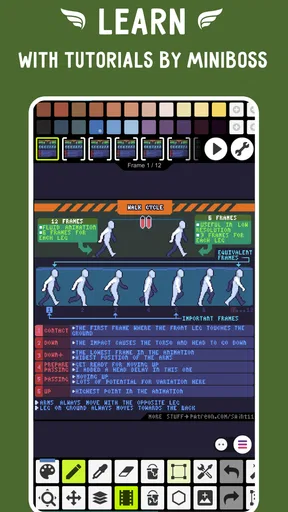
Animation also asks for a different kind of patience than a still image. Onion skinning can help you judge how one frame relates to another, but it does not remove the need to make deliberate changes and review the motion as a sequence. A good first exercise is a simple blink or a small bouncing shape: change only a few pixels between frames, then inspect whether the movement reads clearly. If your main goal is complex animation production, compare the editor’s workflow with a desktop tool before making it the center of a larger project.
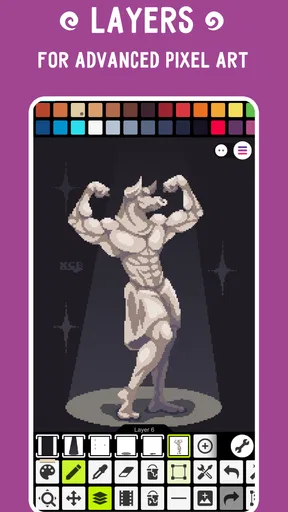
Layers are most useful when they solve a specific problem. For example, separating a character from a background can make revisions less risky, while keeping every detail on one layer may be faster for a tiny doodle. I would start with only the separation you need, rather than building a complicated stack before the artwork calls for it. This keeps the canvas easier to manage and makes it clearer which part of the image you are changing.
Why You’ll Love It
One of my favorite aspects of Pixel Studio PRO is its community feature. You can connect with other artists, share your creations, and even get inspired by what others are working on. It’s like having a little art club in your pocket. Plus, the developers are super responsive and regularly update the app with new features and improvements based on user feedback.
For an everyday use case, imagine having ten minutes while waiting for a bus or taking a break. You can open a small project, block in a silhouette, and leave a note for yourself about the color or detail you want to revisit. Later, you can return to it when you have more time. That suits people who enjoy building an image in short sessions. If you need a large workspace, extensive file-management options, or a keyboard-and-mouse setup for long production days, a desktop editor may be a better fit.
Compared with a basic drawing app, a pixel-art-focused editor is valuable when you want clean, deliberate blocks of color rather than smooth brush strokes. A general painting app may feel more natural for textured illustrations or loose sketching; a desktop pixel editor may be more comfortable for intricate work and longer animation sessions. I would choose this app when portability and pixel-specific creativity matter more than having a large screen or a broad range of traditional painting tools.
One detail that can save time is to settle on a limited palette before polishing the image. Choosing a few colors early helps keep a sprite coherent and makes it easier to spot where contrast is weak. If the picture feels muddy, try simplifying the colors before adding detail. Symmetry is another tool I would use selectively: it is handy for balanced icons and patterns, but a character can look stiff if every feature is mirrored. Turning symmetry into a starting point, then adding a few intentional differences, often gives the result more personality.
Cloud access can be useful if you move between devices, but I would not treat it as a reason to skip ordinary saving habits. Keep a clear naming system for versions of work you care about, and check that the copy you intend to continue is the one you have opened. That small routine matters when you experiment with alternate colors or animation frames, because it reduces the chance of confusing a rough draft with the version you want to share.
There are also projects for which a mobile editor is simply the wrong tool. If you are preparing detailed assets for a production pipeline, need a very specific export setup, or depend on extensive keyboard shortcuts, check that the app supports your exact workflow before building a whole project around it. I would use Pixel Studio PRO for personal art, small game-style sprites, icons, and learning the logic of pixel placement. For precision-heavy professional work, I would first test a representative file and compare the time it takes with a desktop alternative.
Its audience size and strong average rating are reassuring signals, not a guarantee that every artist will find the controls comfortable. The 115 written reviews offer another place to look for recent user experiences, particularly if you want to understand how people use it on a device like yours. Still, your own first drawing is the best test: make one small asset, try a palette change, and see whether the process feels enjoyable rather than cramped.
Cost, expectations, and choosing the right fit
And let’s not forget about the price. Compared to other apps in the market, Pixel Studio PRO offers a lot more bang for your buck. It’s a one-time purchase that unlocks all features, so no annoying subscriptions to worry about. It’s perfect for anyone who wants a powerful yet affordable tool for creating pixel art.
Because the app has a stated price as well as optional in-app purchases, I would read the purchase screen carefully instead of assuming every extra is included in the initial cost. The best way to judge its value is to match it to a repeated need: if you regularly draw sprites or enjoy learning pixel art, a dedicated editor may be more useful than a free, general drawing tool. If you only want to make one occasional icon, a simpler option could be enough.
I would recommend it most to beginners who want a guided way into pixel art, hobby artists who like drawing in short bursts, and experienced creators who want a portable place for concepts or small assets. I would be more cautious if you dislike working on touchscreens, need a broad illustration toolkit, or expect a mobile app to replace a carefully configured desktop workflow. That distinction is more useful than calling it universally easy: its appeal depends on whether pixel-focused work is what you actually want to do.
Final Thoughts
If you’re a fan of pixel art or just looking for a new creative outlet, Pixel Studio PRO is definitely worth checking out. With its user-friendly interface, robust feature set, and vibrant community, it’s an app that inspires creativity and makes digital art accessible to everyone. I’ve been having a blast using it, and I’m sure you will too. So, why not give it a try and see what pixel masterpieces you can create?
Ready to unleash your creativity? You can download Pixel Studio PRO from the links provided on our website. Happy creating!
Verdict
Strengths of Pixel Studio PRO: editor
- Intuitive interface, easy to navigate.
- Wide range of editing tools available.
- Supports multiple layers for detailed work.
- Export options include various formats.
- Regular updates enhance functionality.
Limitations of Pixel Studio PRO: editor
- Occasional lag on older devices.
- Limited free version features.
- Requires in-app purchases for full access.
- No real-time collaboration features.
- Initial learning curve for beginners.
Other Releases by Hippo Games AM
View All
Pixel Studio: pixel art editor
Art & Design4.6
Similar Picks in This Category
View All
Canva: AI Photo & Video Editor
Canva4.8

PENUP – Drawing-sharing SNS
Samsung Electronics Co., Ltd.4.5

Crafto
Kutumb App4.6

Sketchbook
Sketchbook4.1

ibis Paint X
ibis inc.4.5

Adobe Express: AI Photo, Video
Adobe4.6
Frequently Asked Questions
What features does Pixel Studio PRO offer?
Pixel Studio PRO is a comprehensive art tool designed for pixel art enthusiasts. It offers features like layers, animation support, a wide range of brushes, and color palettes. The app also includes tools for creating seamless patterns and exporting your artwork in various formats, making it a versatile choice for both beginners and professionals.
Is Pixel Studio PRO user-friendly for beginners?
Yes, Pixel Studio PRO is designed with an intuitive interface that caters to both beginners and experienced artists. It offers tutorials and tips to guide new users through the basics, while advanced features are available for more experienced artists to explore, ensuring a smooth learning curve for everyone.
Can I use Pixel Studio PRO for animations?
Absolutely. Pixel Studio PRO supports animation creation, allowing users to create and edit frame-by-frame animations. The app provides a timeline feature to manage frames and layers efficiently, making it a powerful tool for creating detailed, animated pixel art projects.
Is there a community for sharing and getting feedback on my work?
Yes, Pixel Studio PRO has a vibrant community where users can share their creations, seek feedback, and collaborate with others. The app also integrates with online platforms, allowing you to easily share your artwork and connect with fellow pixel artists worldwide.
What devices and operating systems are supported?
Pixel Studio PRO is available on both Android and iOS platforms, ensuring compatibility with a wide range of devices, including smartphones and tablets. The app is optimized for performance, providing a smooth and responsive experience across all supported devices, allowing you to create art on the go.
